IDE: parameters, validation & history
Slider parameters to tune and optimize, live diagnostics, automatic versions and the security sandbox.
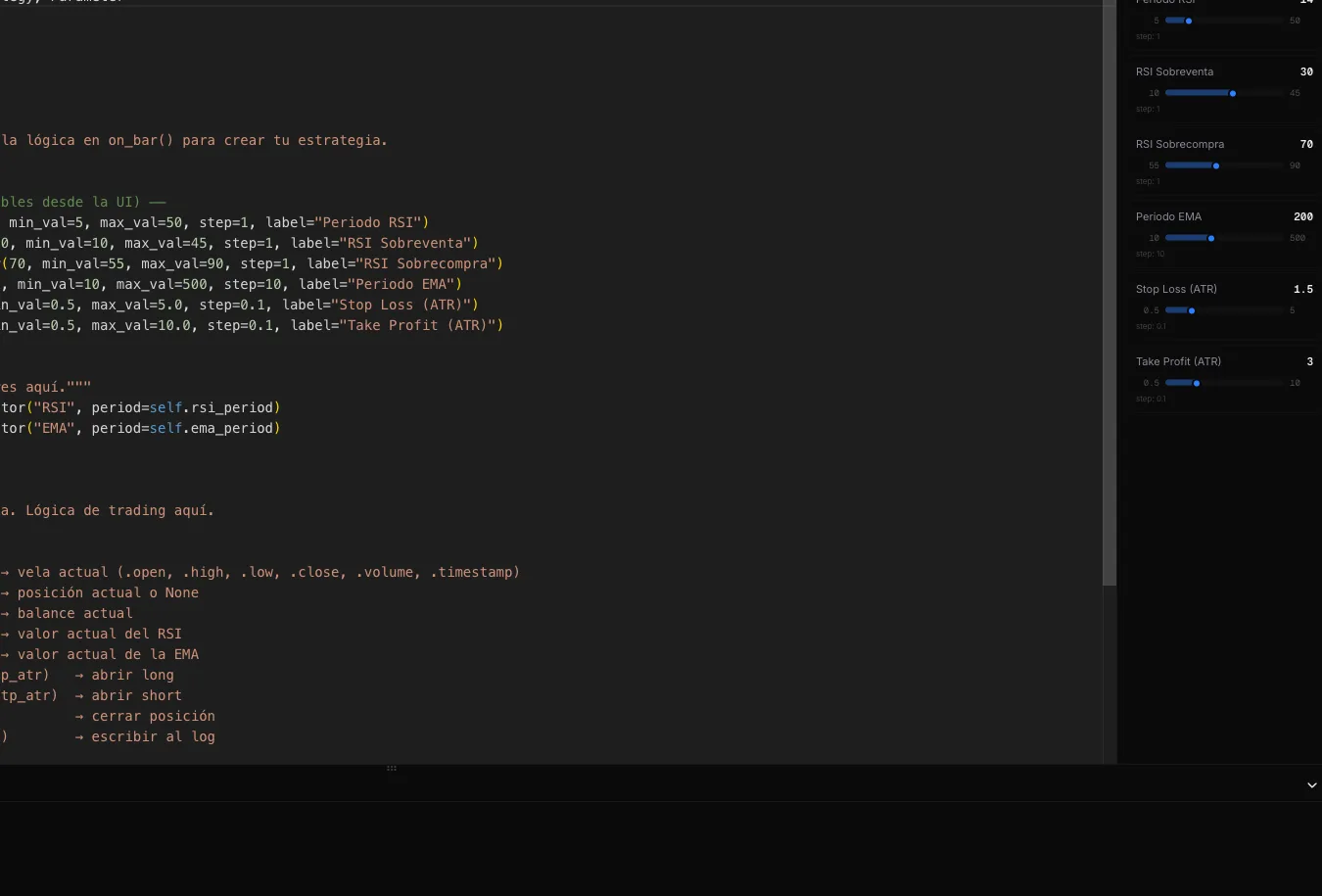
This page covers three things that make the IDE comfortable and safe: adjustable slider parameters, live diagnostics that warn you of errors as you type, and the automatic version history that saves your progress. At the end you'll also find everything you need to know about the security sandbox where your code runs.
Parameters with Parameter()
When you declare a class attribute with `Parameter(...)`, TradingNote automatically detects it and creates a slider in the right panel of the IDE. This way you can fine-tune values without touching the code, and those same parameters are ready to be swept by the optimizer when the time comes.
class MiEstrategia(Strategy):
    rsi_period = Parameter(14, min_val=5, max_val=50, step=1, label="Periodo RSI")
sl_atr = Parameter(1.5, min_val=0.5, max_val=5.0, step=0.1, label="Stop Loss (ATR)")| Argument | What it defines |
|---|---|
| First (positional) | Default value of the parameter. |
| min_val | Minimum of the slider. |
| max_val | Maximum of the slider. |
| step | Step between slider values. |
| label | Label visible in the parameters panel. |
Grouping parameters
You can organize sliders into sections with a special comment immediately before the group. The IDE recognizes the `# ── Name ──` syntax and creates a visual header that separates parameters in the panel.
class MiEstrategia(Strategy):
    # ── Entrada ──
    rsi_period = Parameter(14, min_val=5, max_val=50, step=1, label="Periodo RSI")
    # ── Salida ──
    sl_atr = Parameter(1.5, min_val=0.5, max_val=5.0, step=0.1, label="Stop (ATR)")
tp_atr = Parameter(3.0, min_val=0.5, max_val=10.0, step=0.1, label="Target (ATR)")Use Parameter() for everything you want to be able to adjust. Later, those same parameters are what the optimizer will vary to find the best configuration, so the more you declare from the start, the more room for improvement you'll have.
Live diagnostics
As you type, the Diagnostics tab (bottom panel of the IDE) flags issues instantly, without you having to run anything. When everything is correct, the green «clean code» status appears; if something is wrong, you'll see error and warning counters with their exact line.
- Forbidden imports or functions (access outside the sandbox).
- Missing Strategy as the base class.
- Missing required method on_bar().
- Invalid indentation (mix of spaces and tabs).
- Unclosed parentheses, quotes or braces.
Version history
You don't have to save manually. The IDE auto-saves approximately every 1.5 seconds and, if there were changes, creates an automatic snapshot every ~30 seconds. Up to 100 versions per file are kept. In the History tab you can see all previous versions with their timestamp and restore any of them with a single click.
If you break something, open the History tab and return to a version that worked. Nothing is lost: the IDE saves silently as you code.
The security sandbox
Your code runs in isolation for security: no internet access, no disk, no operating system libraries. This protects the platform and all other users. The table below summarizes what is allowed and what is blocked.
| Allowed | Blocked |
|---|---|
| `from strategy_base import Strategy, Parameter` | System modules: os, sys, subprocess, socket, requests, urllib, threading, multiprocessing, pickle, sqlite3 and similar. |
| Import your own project files (e.g. `from helpers import my_function`). | Dangerous built-in functions: open(), eval(), exec(), compile(), __import__(), input(). |
| Pure Python: calculations, if/for, lists, dicts, custom classes... | Introspection attributes: __class__, __globals__, __subclasses__() and similar. |
If you see a «blocked import» or «blocked function» error, it's not a platform bug: it's the sandbox working correctly. Solve it by implementing the logic with pure Python or the Strategy API, which already covers common use cases.
Multi-file projects
You can split your strategy into multiple .py files (for example main.py and helpers.py) and folders, and import between them normally using relative paths. The mandatory entry point is always main.py.
# helpers.py
def es_sesion_londres(hora_utc):
    return 7 <= hora_utc < 16

# main.py
from strategy_base import Strategy, Parameter
from helpers import es_sesion_londres

class MiEstrategia(Strategy):
    def on_bar(self):
        if not es_sesion_londres(self.current_bar.hour):
            return
# ... lógica de tradingPublish as an algorithm
When your strategy is ready, press «Save as algorithm». Remember the IDE doesn't run the code: on save, the strategy moves to «My Algorithms» as a new algorithm, and that's where you backtest it, tune its parameters to find the best ones, validate it statistically (DSR, Walk-Forward, Multiverse) and, if it passes, add it to a portfolio or take it to live trading.
Iteration is the key: adjust a slider, run the backtest, look at the result and repeat. With each round you fine-tune the strategy a little more. The automatic history lets you experiment without fear of losing what already worked.